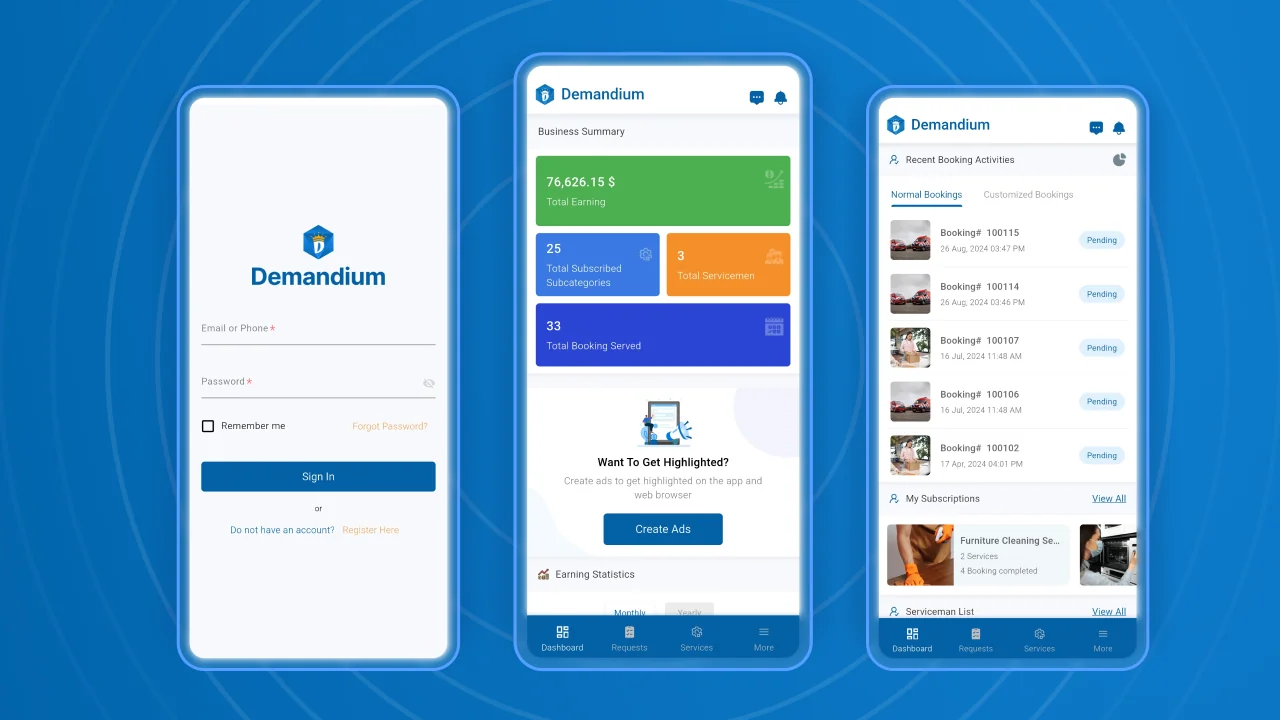

Demandium Provider app is the most important module of the Demandium Multi Provider on-demand service project. Providers can accept and deliver services using this app. Providers can manage all the things related to the provider panel by this app, like managing servicemen, assigning them to new service categories, earning reports, etc.
Download and check the Provider App
Email: provider@provider.com
Password: 12345678
Please Note:
This is a demo app and many people are testing this credential simultaneously. For a better experience with the Demandium provider app, we suggest you create a unique provider account from the admin panel first. You can follow these steps:
Explore the Demandium Admin Panel
Email: admin@admin.com
Password: 12345678
Experience this demo website properly by logging in to it. Remember that as this is a demo website, your credentials and demo data will be automatically reset after 1 hour, and you need to log in again.
Learn more about Demandium Prover App:
Self-Registration
Users can register themselves as providers from the Demandium provider app.
Intuitive Dashboard
The intuitive dashboard of the Demandium provider app shows total business summaries such as total earnings, total subscribed subcategories, total servicemen, total booking serviced, earning statistics, recent booking activities, subscriptions, and serviceman lists.
Booking Requests
F rom the booking request page, providers can see various booking requests, such as pending, accepted, ongoing, completed, and cancelled. Providers can also view booking details from each sub-section and change booking status, change booking schedule, download invoices, chat with customers, and view booking status.
Withdrawal Option
From the account information section of the profile settings option of the Demandium provider app, providers can request for withdrawal to the admin. On the withdrawal request page, providers can select their preferred withdrawal method and provider relevant information according to it and then slide to withdraw the request from the app.
View Booking on Map
Providers can view the customer’s location on the map from the Demandium provider app. This feature allows the provider to find a nearby serviceman to serve the customer on time.
Change Request Status
From the booking details page, providers can change the booking request status according to the task update. Such as pending, accepted, ongoing, completed, and cancelled.
Change Booking Schedule
Providers can change the booking schedule according to the customer & serviceman availability.
Assign Serviceman
From the booking details page on the Demandium provider app, providers can assign a serviceman whose skill and expertise match the customer’s service request criteria perfectly.
View Customer Info
Providers can view the customer’s name, phone number, and service address from the booking details page.
Print & Download Invoice
From the accepted booking requests detail page, providers can view, edit, download, and print the invoice easily from the Demandium provider app.
Subscribe/Unsubscribe to A Service
Providers can subscribe or unsubscribe from a service subcategory from the service page of the Demandium provider app.
View Service Details
Providers can view service details from each subcategory, which includes service overview, FAQs, customer reviews, etc., before choosing to subscribe or unsubscribe to a service.
Get Notifications
Providers get real-time notifications when a customer nearby places an order. They can view the order details from the notification section. The notification also includes direct notifications from the admin.
Edit Provider Profile
Providers can edit their profile from the provider app and change their name, email, phone number, and address. They can also change their account information from this section.
View Ratings & Reviews
Providers can view ratings and reviews of customers from different services and the servicemen working under them and the provider themselves from the Demandium provider app.
Edit Account, Business & Bank info
From the profile settings option, providers can edit and change their account information, business information, and bank information.
Commission & Promotional Cost Details
Providers can view the total amount of commissions they’re receiving from the admin on the commission details page. They can also see how much cost they’re bearing for various promotions such as discounts, campaigns, and coupon cost percentages.
Published:
Feb 07, 2026 08:00 AM
Version:
v7 Jan 2026
Category:
High Resolution:
YesTags: